First Payload
Creating Your First Payload
Now that you’re connected, let’s create a simple payload that will open Notepad on a Windows computer and type a welcoming message.
Step-by-Step Guide:
-
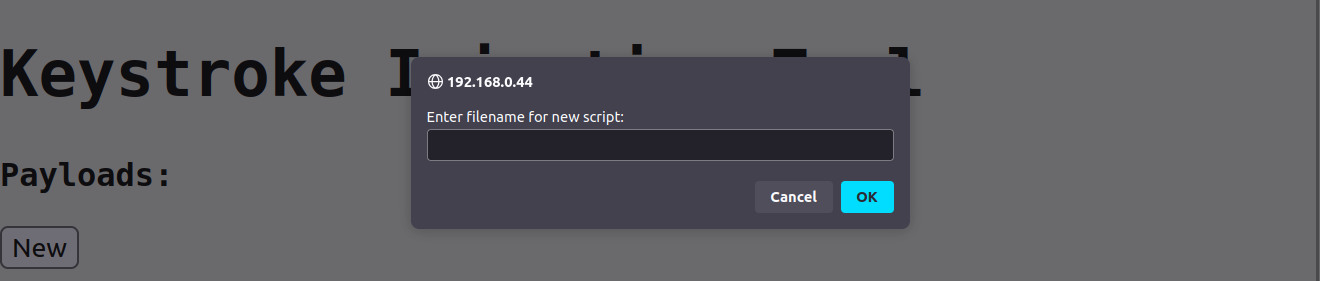
Go to the Payload Editor: On the web interface, find the button labeled New, and click on it.
-
Enter a Name for the Script: You will be prompted to enter a filename for your payload. Let’s call it
Welcome_Payload.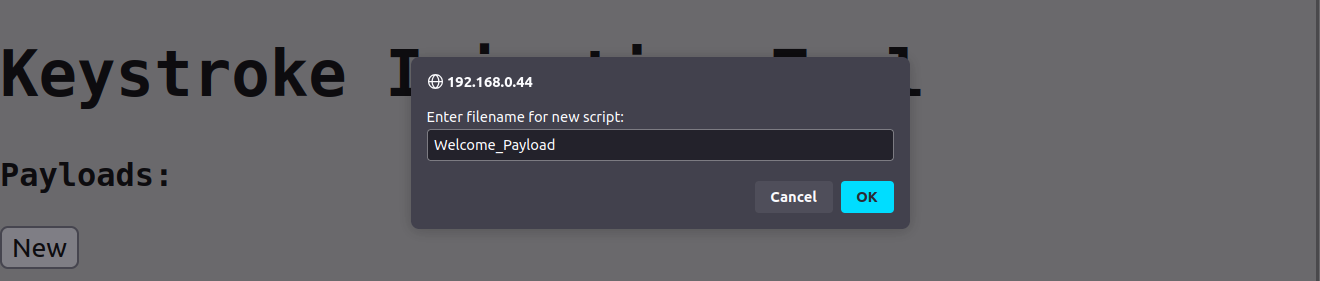
-
Write the Payload: In the editor, enter the following script:
DELAY 1000
GUI r
DELAY 500
STRING notepad
ENTER
DELAY 1000
STRING Welcome to NJCTR3000!
ENTER
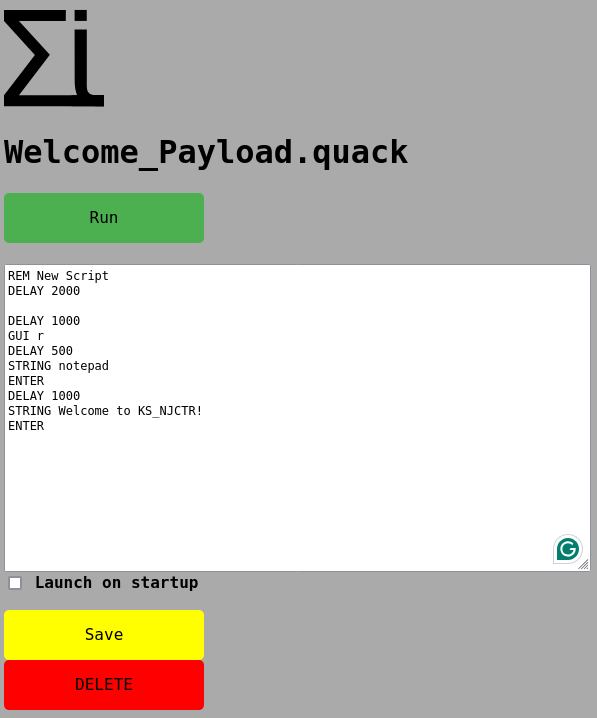
Here’s what this script does:
DELAY 1000: Waits 1 second before starting.GUI r: Opens the Run dialog by simulating the key combinationWindows + R.STRING notepad: Typesnotepad.ENTER: Presses the Enter key to open Notepad.DELAY 1000: Waits another second to ensure Notepad is open.STRING Welcome to NJCTR3000!: Types the welcome message into Notepad.
-
Set auto-launch: We want our payload to automatically launch when we connect it to a device, Check the “Launch on startup” box.
-
Save the Payload: To save the script, click the Save button. You will see a confirmation message and then be redirected to the main page.